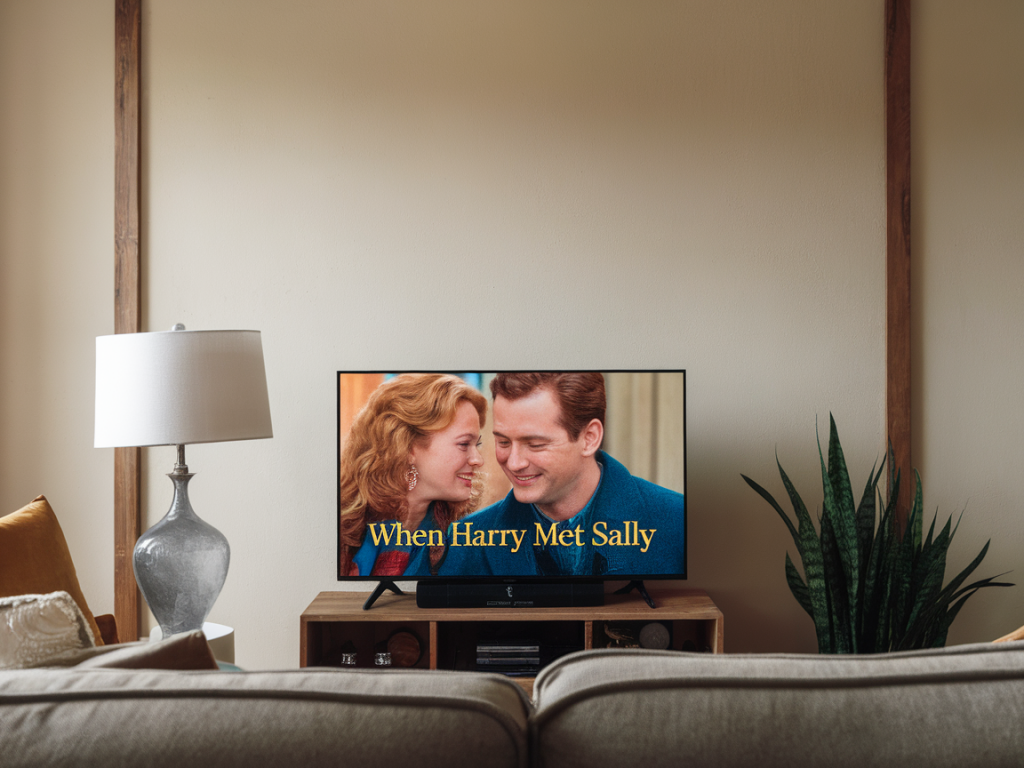
I have a confession: I judge rom-coms by how cinematic they look on my tiny TV. Yes, even the ones I watch while eating cereal on my couch. Over the years I’ve fiddled with every setting my TV remote and streaming sticks offer until I found a combo that makes even bargain-bin rom-coms feel like they had a theatrical release — rich skin tones, soft highlights, and none of that waxy, hyper-smooth soap-opera look. If you want your rom-coms to look like they belong on a festival poster rather than a budget laptop screen, here’s the exact remote-driven recipe that works on small displays (32–43 inches), plus the why behind each tweak.
The setting that changes everything: Filmmaker Mode / Cinema / Movie
There’s no single magic button on every remote, but the closest universal lifesaver is switching your TV to Filmmaker Mode (if available) or the Cinema/Movie picture preset. These modes are designed to respect the director’s intent: accurate colors, correct frame cadence, and minimal post-processing. On small screens this matters more than HDR specs or higher resolution — it’s about preserving natural skin tones and film-like texture.
I hit the Picture button on my remote, scroll to Filmmaker (on newer LG, some Sony models), or Cinema/Movie on Samsung, TCL, Vizio and Roku TVs. The image immediately loses that plastic, oversharpened look and gains warmth. Suddenly the lighting in a park meet-cute looks intentional, not over-processed.
Why Filmmaker/Cinema Mode works for rom-coms
It disables motion smoothing (aka “soap opera effect”) so actors look natural rather than unnaturally crisp during dialogue scenes.It lowers aggressive sharpening and noise reduction so you see texture and soft cinematic depth instead of an ultra-crisp fake image.Color temperature is usually shifted to a warmer, more film-like balance — perfect for rosy rom-com palettes.Remote tweaks you should make after selecting Cinema/Filmmaker
Even after choosing Cinema mode, I always jump into Advanced Picture settings with my remote and do a few micro-adjustments that matter on small screens:
Turn off Motion Smoothing / Auto Motion Plus / TruMotion: This is the number-one anti-rom-com culprit. It makes film frames interpolate and look like daytime soap. On most remotes it’s under Picture → Advanced → Auto Motion. Set it to Off or Custom: Minimum.Sharpness: 0–10: Dial it way down (often to 0). Small displays don’t need extra edge enhancement; sharpness adds halos around faces and makes makeup obvious.Noise Reduction: Low or Off: Heavy noise reduction can blur detail. Set it low so film grain (if present) stays natural.Color / Tint: Leave the preset’s color, but if skin looks too green or magenta nudging tint one notch fixes it. Use remote arrows to get it right.Color Temperature: Warm 2 or Warm: Most Cinema presets already nudge warm; if yours looks cool, choose Warm or Warm2 for creamier skin tones.Contrast / Brightness: Contrast slightly lowered (not crushed) keeps highlights from blowing out on small panels. I usually lower contrast by 5–10 points from the preset on my tiny TV.Local Dimming / Dynamic Contrast: Enable gentle local dimming if your TV has it, but avoid overly aggressive dynamic contrast which can make scenes flicker between too dark and too bright.Backlight / OLED Brightness: Reduce a touch so highlights in romantic candlelight aren’t blinding; for OLEDs keep brightness moderate to preserve shadow detail.Gamma: 2.2–2.4: If your TV exposes this setting, 2.2 gives a brighter image, 2.4 is closer to cinema darkness. On small living-room TVs I prefer ~2.2 so details in dimly lit scenes remain visible.Streaming device and app tips from the remote
The TV remote controls picture, but your streaming stick or smart TV app controls bitrate and HDR behavior — which affect how cinematic a rom-com looks on a small screen:
Enable highest allowed resolution/bitrate: On devices like Roku, Fire TV, Apple TV, and Chromecast with Google TV, go into the device settings (via remote) and set display resolution to the max your TV supports. More bitrate equals cleaner picture.HDR vs SDR: HDR (Dolby Vision/HDR10) is amazing on larger, brighter screens but on tiny TVs it can make highlights pop too hard and shift skin tones. If a movie looks oversaturated under HDR, many apps let you toggle HDR off (or your device may auto-switch). Try both and pick the more natural one.Automatic Low Latency Mode (ALLM): Good for gaming, not for films. Turn it off if the TV switches image profiles during playback.App-specific settings: Netflix, Prime Video and Disney+ sometimes force HDR/Auto. Use the app’s quality settings (under Account or Playback) to ensure maximum bitrate if your connection allows.Make sound feel cinematic too (remote-based fixes)
Picture is only half the vibe. I always pair the remote’s audio controls with a cheap soundbar or Bluetooth speaker. On my little TV the built-in speakers flatten rom-com dialogue and music.
Connect a soundbar via HDMI ARC or optical and use the TV remote to switch audio output to the soundbar.Enable Night Mode or Speech Enhancement if lyrics or dialogue get lost during background music — these are remote-accessible toggles on many TVs and soundbars.Small-screen staging tips I actually use
Ambient light: Turn off bright overhead lights and keep soft lamps behind you to reduce reflections and preserve perceived contrast.Viewing distance: Sit a bit closer than you might think; on a 32–43" TV the immersive effect improves if you’re not too far back.Reset if things look wrong: Sometimes an auto-update flips settings. If colors go wild, hit the remote’s Picture Preset button and reselect Cinema/Filmmaker and your custom tweaks.Brand-specific quick remote commands
| LG | Press Settings → All Settings → Picture → Picture Mode → Filmmaker Mode (or Cinema) |
| Samsung | Home → Settings → Picture → Picture Mode → Movie; then Picture Clarity → Auto Motion Plus → Off |
| Sony | Home → Settings → Display & Sound → Picture → Picture Mode → Cinema/Creator; MotionFlow → Off |
| TCL / Roku TV | Home → Settings → TV Picture Settings → Picture Mode → Movie → Advanced Picture → reduce Sharpness |
| Amazon Fire TV | Settings → Display & Sounds → Display → Video Resolution → set to max; use TV’s remote to set Picture Mode to Movie |
I won’t pretend this is rocket science — it’s a few thoughtful flips on your remote followed by a tiny bit of fine-tuning. But these small actions deliver a surprisingly big upgrade. The next time you cue up a rom-com for a cozy night, try switching to Filmmaker/Cinema mode, kill motion smoothing, warm the color, and feed audio to a soundbar. Your tiny TV will thank you by making the meet-cute feel worth a theater ticket — even if the popcorn is from your own kitchen.