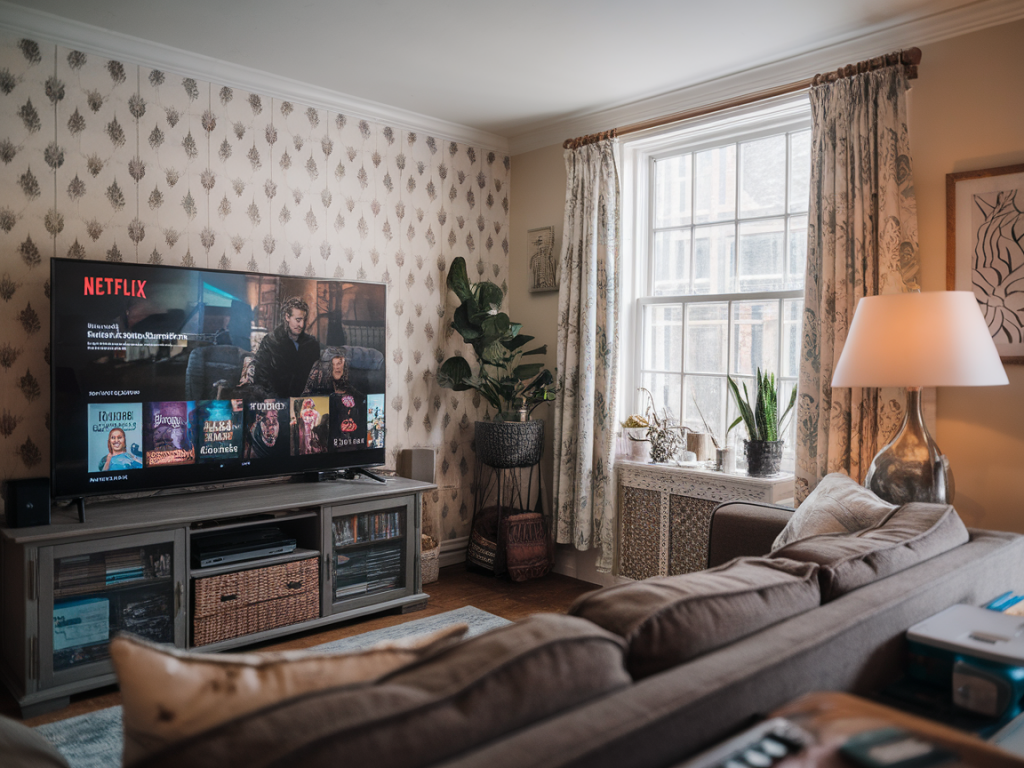
I’ll admit it: I’m a sucker for that “big-screen” feeling. Give me booming sound, inky blacks, and a frame that feels intentional and cinematic, and I’ll forgive a lot of plot holes. The good news? You don’t need a home theater budget to get Netflix shows to look like they belong on the silver screen. There’s one cheap streaming trick — actually a combo of a few tiny adjustments — that instantly takes a TV’s output from flat-and-Netflix-y to cinematic. I tried it on a $40 streaming stick and a mid-range Smart TV, and the difference was wild enough that I had to share it.
What is the trick (short version)?
The core idea is this: match your TV and streaming device to the content’s intended picture settings and then remove the TV’s “helpful” processing. Practically, that means switching to your TV’s Movie/Cinema mode, disabling motion smoothing, turning down sharpness, enabling HDR/Dolby Vision when available, and using a basic soundbar or even your phone for better audio. These aren’t glamorous purchases — they’re settings changes and inexpensive add-ons — but combined they give Netflix shows that big-screen polish.
Why it works
Televisions are sold to look great in a bright electronics showroom. That often means saturated colors, exaggerated sharpness, and motion smoothing that makes a period drama look like a soap opera. Film and TV are graded and mastered with specific frame rates, dynamic range (HDR vs. SDR), and color in mind. When your TV “helps” by over-processing the image, it fights the show’s intended look.
By returning the TV to a neutral, cinema-style baseline and letting the streaming device output the content as intended (frame rate, color depth, HDR metadata), you preserve contrast, color accuracy, and motion — the same qualities that make a film look cinematic in a theater.
Step-by-step: how I made Netflix look like a movie (cheap and fast)
What I used in my test (real-world kit)
| Streaming stick | Chromecast with Google TV (budget-friendly and supports Dolby Vision). |
| TV | A mid-range 55" LED with standard Movie mode and HDR support. |
| Sound | Vizio 2.1 soundbar — cheap, but made dialog and bass feel theatrical. |
| Extras | LED bias-light strip behind the TV, HDMI 2.0 cable. |
Netflix settings and content selection
Not every Netflix title will magically become a 70mm epic — but many modern, high-production-value shows already have HDR masters and Dolby Vision profiles you can take advantage of. Look for the Dolby Vision or HDR badge on the show’s detail page. I tested with an HDR-ready show and immediately noticed richer blacks and more vibrant color once Dolby Vision was active.
In Netflix’s playback settings (log into your account on desktop):
Common pitfalls and quick fixes
Why this is a great hack for cheap setups
People worry they need a 4K projector, a Dolby Atmos receiver, and a closet full of cables to get a cinematic experience. That’s not true. Visual fidelity is often bottlenecked by software settings and TV defaults rather than hardware limits. By making a handful of thoughtful settings changes and adding a cheap soundbar or LED bias light, you get a visible step up in perceived image quality and atmosphere without blowing your rent money.
Extras that elevated the experience for me
If you want, I can write a printable checklist of the exact TV and device settings to toggle for the next time you want to turn your living room into a micro-theater. Or tell me what TV and streaming stick you have and I’ll walk you through the best settings specific to your gear. Your Netflix nights are about to get a glow-up — and you only needed a few cheap tweaks to get there.